

Project Planning Pipeline: Plan in Obsidian, Augmented by Cursor#
I’m currently turning a personal project into something more serious: it started as a CS50 Python assignment and is now something I want to realise as a business. I’m using it to turn LifeClock—my CS50 Python final project—into a product, which I’ve documented in the LifeClock series. That meant I needed a better way to think, ideate, and plan in detail—without losing the flexibility of my own notes. I already liked working in Obsidian: the graph of linked notes and the fact that everything lives as markdown in a folder make it a great fit to feed context into tools like Cursor. So I asked myself how to combine both: Obsidian for planning and thinking, and Cursor not only for code but for research, documentation, and deeper ideation. The goal was never to generate everything with AI. I wanted to put my own thoughts into the system—open the editor, write things down—and then use Cursor to go deeper: “expand this,” “research that,” “align this section with our product goals.” That’s how the Project Planning Pipeline was born.
The pipeline is a small system that a CLI installs into your Obsidian vault: a Dashboard, stage-based templates, and a .cursor directory with rules, skills, and agents that work on the same notes. Cursor augments the workflow: it helps you ideate, plan better, and do research with agents, skills, and tools. Planning and writing stay in Obsidian; Cursor adds structure, depth, and research so you have one source of truth that your IDE (and future coding agents) can use when you build.
This article walks through what the Project Planning Pipeline is, what you get after setup, and how to set up your own vault and first project with the CLI.
Why This Structure?#
The pipeline’s stage-based structure follows established product development methodologies. The Stage Gate Process—used by companies like Asana and documented in product management frameworks—divides projects into distinct phases with decision gates: ideation → planning → design → engineering → launch. This approach prevents scope creep and ensures each phase delivers concrete value before moving forward.
The numbered folder structure (00-09) reflects this lifecycle: 00_Status & Roadmap tracks progress, 01_Market Analysis validates opportunity, 02_User Research defines the audience, 03_Product specifies requirements, 04_Design creates experiences, 05_Technical defines architecture, 06_Engineering executes, 07_Analytics & Growth measures success, and 08_Legal & Privacy ensures compliance. You don’t have to use every stage, but the consistent numbering keeps projects navigable as they grow.
Why Obsidian + Cursor? Cursor can treat an Obsidian vault as an AI-searchable knowledge base, accessing your entire planning context simultaneously—unlike ChatGPT’s limited context windows. Since Obsidian notes are plain Markdown files, language models can read and process them directly. This integration enables semantic search across your knowledge base, querying notes with natural language, and brainstorming from existing knowledge. The pipeline leverages this by providing Cursor with rules, skills, and agents tuned to your vault structure, so AI assistance stays aligned with your planning methodology.
What Is the Project Planning Pipeline?#
The pipeline is two things: a standard layout for an Obsidian vault and a Node.js CLI that installs it. The layout gives you one place for project context—a Dashboard, Templates (by stage), a Projects folder (one folder per project), and a .cursor directory so Cursor knows how to work with the vault. The CLI installs that layout (and optional per-project scaffolding) into a folder you choose: run it once for shared assets, then again per project so each project gets the same stage-based structure.
The pipeline workflow runs in a loop:
- Plan in Obsidian — Roadmaps, market analysis, PRDs, backlogs
- Cursor augments — Draft, refine, research, or expand sections
- Single source of truth — Markdown notes feed IDE and agents when you build
It doesn’t replace your thinking; it helps you go deeper. You write in the vault, and Cursor can draft, refine, research, or expand sections using the rules, skills, and agents that ship with the pipeline. Cursor and tools like it are more than coding assistants: they’re powerful for research and documentation too. The pipeline is aimed at digital and software projects, but you can adapt stages and templates to anything you track (research, writing, side projects).
The vault structure draws on the Obsidian Zettelkasten Starter Kit by Edmund Gröpl, which I’ve used for years as a basis for note structure and dashboards. I highly recommend checking it out; it’s a solid foundation for a Zettelkasten-style workflow in Obsidian.
Requirements: Node.js 20+ (with npm). Obsidian installed.
What You Get After Setup#
After running the CLI you get:
- Dashboard.md — Command center (project list, KPIs, links). The repo ships a starter that uses DataView; you can replace or extend it.
- Templates/ — Per-stage templates (Project MOC, Roadmap, PRD, Backlog, Sprint, Persona, SWOT). These are markdown and canvas templates you instantiate in Obsidian when you add or refine project content.
- .cursor/ — Rules, skills, and agents for Cursor. These ensure Cursor respects your vault structure, templates, and how you want to plan (e.g. canvas usage, note conventions).
- Projects/ — One folder per project (initially empty). Each project you add gets its own folder with the same stage folders (see below).
One vault, many projects, one CLI, and one Cursor workspace that can see it all.
How to Set Up (Step by Step)#
1. Create or Choose an Obsidian Vault#
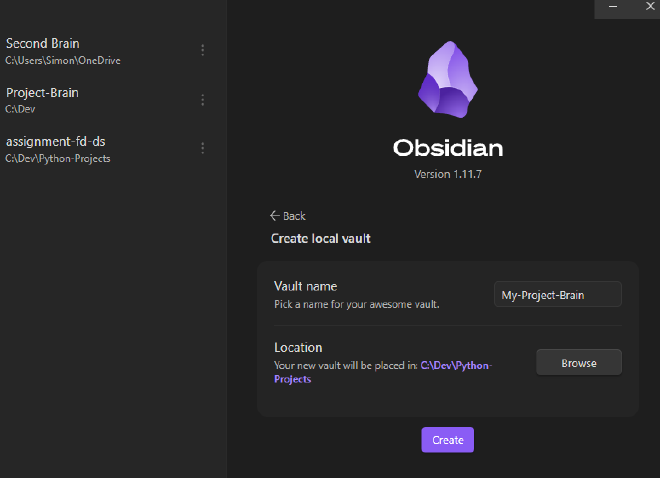
Use a folder that will be your Obsidian vault (e.g. C:\Vaults\MyBrain or ~/vaults/my-brain). If you prefer, create a new vault from Obsidian’s UI: Create local vault, pick a name and a parent folder, then Create. The folder Obsidian creates is the one you’ll pass to the CLI.
2. Install the Pipeline (Shared Assets Only)#
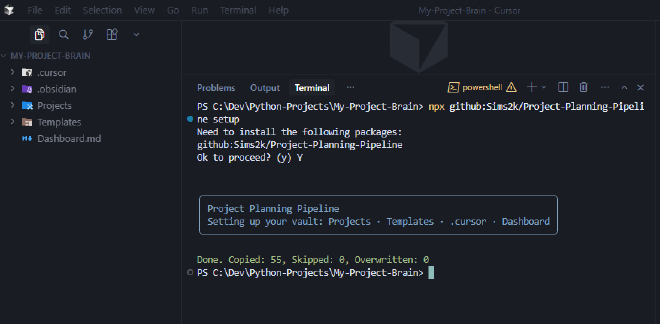
In a terminal, go to that vault folder and run:
cd path/to/your/vault
npx github:Sims2k/Project-Planning-Pipeline setup
If you’re not in the vault directory, pass the path as the first argument:
npx github:Sims2k/Project-Planning-Pipeline setup "C:\Vaults\MyBrain"
npx may ask to install the package once; confirm with y. The CLI then copies into your vault: Projects, Templates, .cursor, and Dashboard.md. Existing files are left unchanged (merge-only).
3. Create Your First Project#
Run the CLI again with a project name. The name becomes the folder under Projects/:
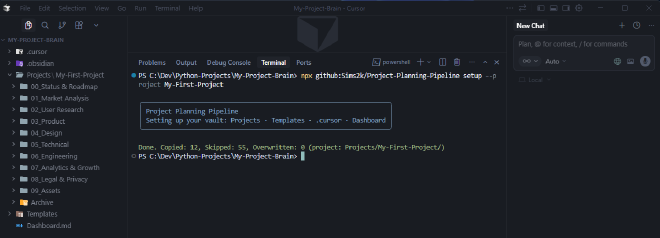
npx github:Sims2k/Project-Planning-Pipeline setup --project "My First Project"
Or with an explicit vault path:
npx github:Sims2k/Project-Planning-Pipeline setup "C:\Vaults\MyBrain" --project "My First Project"
The CLI creates Projects/My First Project/ and inside it the full stage layout (see next section). You can add more projects anytime by running the same command with a different --project "Another Project" name.
4. Enable Community Plugins in Obsidian (Recommended)#
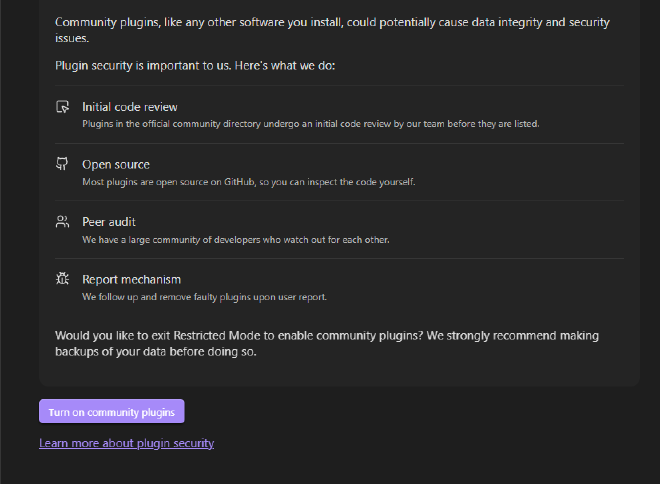
The Dashboard and many templates work best with a few Obsidian community plugins. Open the vault in Obsidian, then go to Settings → Community plugins. If Obsidian shows a security notice about community plugins, you can Turn on community plugins (consider making a backup of your vault first).
In Community plugins, click Browse and install (and enable) these:
- DataView — Used by the default Dashboard for tables and lists from your notes.
- Templates — So you can insert notes from the
Templates/folder (e.g. Project MOC, PRD, Backlog). Point the core Templates plugin or your preferred one at theTemplatesfolder. - Charts — For charts in the Dashboard or project notes.
- Banners — Optional; some templates reference banner images in note headers.
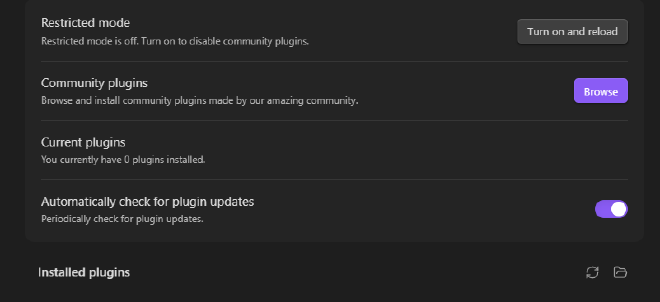
Restart Obsidian if prompted. After that, open Dashboard.md and, if you use the default template, you should see DataView blocks and placeholders you can adapt.
Vault Layout and Stage Folders#
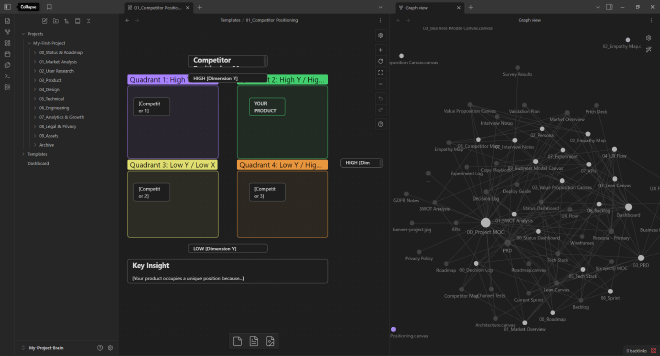
I set up the pipeline around several phases that fit how I move from idea to execution. After setup, each project folder under Projects/ has the same structure:
| Stage | Contents |
|---|---|
| 00_Status & Roadmap | Status dashboard, roadmap, decision log |
| 01_Market Analysis | Market overview, competitor map, SWOT, TAM/SAM/SOM |
| 02_User Research | Personas, interview notes, surveys |
| 03_Product | PRD, value proposition, lean/business model canvas |
| 04_Design | UX flows, wireframes, copy |
| 05_Technical | Tech stack, architecture, deployment |
| 06_Engineering | Backlog, sprints, validation plan (with a Sprints subfolder) |
| 07_Analytics & Growth | KPIs, experiments, channels |
| 08_Legal & Privacy | Privacy/GDPR notes, policy drafts |
| 09_Assets | References, media, docs |
| Archive | Retired or superseded content |
You don’t have to use every stage; the numbering keeps a consistent order. In Obsidian, you can create a Project MOC (Map of Content) from Templates → 00_Project MOC.md in each project folder and link it from the Dashboard so everything stays discoverable.
Using Cursor with the Vault#
Open the vault folder as the workspace in Cursor (File → Open Folder). One thing is important: this pipeline does not write code. Everything stays in markdown—notes, roadmaps, PRDs, research. Those markdown notes are the source of truth; later, when you switch to implementation, you can point your IDE or coding agents at this vault so they have full project context. The pipeline is for thinking, planning, and research; code lives elsewhere.
The installed .cursor directory contains rules, skills, and agents that make that workflow consistent.
Rules#
Rules are passive, persistent instructions that shape agent behavior based on globs or always-apply settings. The pipeline ships 7 rules:
- guidelines.mdc — High-level guidance for the pipeline
- project-structure.mdc — Folder hierarchy, stage folders, MOC requirements, file placement (applies to
Projects/**) - obsidian-notes.mdc — Obsidian note conventions and structure
- templates.mdc — Template usage and stage-based templates
- canvas-files.mdc — Obsidian canvas (
.canvas) file handling - git-workflow.mdc — Git branching, commits, workflow
- github-sync.mdc — GitHub sync and collaboration
Rules tell Cursor how to treat Obsidian notes, templates, project structure, and (if you use them) canvas files or Git. They give the AI clear guidance on how to work inside this project.
Skills#
Skills are invocable capabilities—the agent can use them when relevant or you can invoke them directly. The pipeline ships 4 skills:
- obsidian-markdown — Create/edit Obsidian Flavored Markdown (wikilinks, callouts, frontmatter, Dataview, tag taxonomy). Use when working with
.mdfiles, creating project notes, or when the user mentions wikilinks, templates, or Obsidian. - obsidian-json-canvas — Create/edit
.canvasfiles (JSON Canvas spec) for UX flows, architecture diagrams, roadmaps, Lean Canvas, Business Model Canvas. Use when working with.canvasfiles or visual canvases. - obsidian-bases — Base conventions for Obsidian workflows
- project-documentation — Structured project docs: numbered folders, business canvases, validation workflows, lifecycle tracking. Use when creating projects, PRDs, Lean Canvas, personas, experiments.
Skills provide reusable instructions for aligning output with Obsidian’s writing style and conventions, or formatting Obsidian canvases (JSON) correctly so they render properly in the app.
Agents#
Agents are sub-agents (custom roles) in Cursor—invoke them when you need role-specific help. The pipeline ships 15 sub-agents:
| Agent | Role | When to Use |
|---|---|---|
| product-manager | PRDs, feature prioritization, roadmaps, product-market fit | Defining products, writing requirements, prioritizing features |
| project-manager | Project planning, timelines, resourcing | Planning and tracking deliverables |
| business-analyst | Business cases, process analysis, requirements | Gap analysis, process mapping |
| market-researcher | TAM/SAM/SOM, competitive analysis, SWOT, industry trends | Market research, competitor analysis, opportunity validation |
| data-analyst | Data analysis, metrics, dashboards, experiments | Analytics, KPIs, validation experiments |
| ux-designer | User flows, wireframes, interaction patterns, usability | Designing experiences, user flows |
| ux-researcher | Personas, interviews, empathy maps | User research, validation |
| ui-developer | UI components, design systems, implementation | Visual implementation |
| backend-developer | APIs, databases, services | Backend architecture and code |
| frontend-developer | UI code, state management, components | Frontend implementation |
| solutions-architect | System design, tech stack, architecture | Technical strategy |
| code-reviewer | Code quality, best practices, security | Reviewing code changes |
| qa-engineer | Testing, validation plans, edge cases | QA and test planning |
| technical-writer | Documentation, READMEs, inline docs | Docs and knowledge base |
| scrum-master | Sprints, standups, retrospectives | Agile process |
You can say “help me with competitor analysis” or “draft a persona from these bullets” and get output that fits the vault and the stage folders. Each agent is a single .md file in .cursor/agents/ with YAML frontmatter (name, description, tools, model).
Building Your Own Sub-Agents#
The pipeline ships 15 sub-agents, but your project may need others—a data-engineer for ETL pipelines, a security-reviewer for threat modeling, or a legal-advisor for compliance. To create a new agent:
- Duplicate an existing agent file in
.cursor/agents/ - Rename it (e.g.,
security-reviewer.md) - Update the YAML frontmatter:
name,description,tools,model - Adjust the responsibilities and frameworks in the content
- Cursor loads agents from the workspace automatically
You can ask Cursor to create a new note from a template, expand a roadmap, or draft a PRD section; the rules and agents are tuned to the pipeline’s layout. You keep planning and your own writing in Obsidian; Cursor augments it with structure, depth, and research so you can “fill in the gaps” without leaving the IDE.
CLI Reference#
| Command | Description |
|---|---|
pipeline setup | Install into current directory (shared assets only). |
pipeline setup --project "Project Name" | Create Projects/Project Name/ with all stage folders. |
pipeline setup [vault-path] | Use vault-path as the vault (e.g. C:\Vaults\MyBrain). |
pipeline setup [vault-path] --project "Project Name" | Vault path and project name together. |
pipeline version | Print version. |
pipeline --help | Show all options. |
Options: -p, --project <name> (project folder name); -f, --overwrite (overwrite existing files); --no-color. Exit codes: 0 success, 1 error, 2 invalid path.
Global install: npm install -g github:Sims2k/Project-Planning-Pipeline — then you can run pipeline setup and pipeline setup --project "Name" from anywhere; pass the vault path when you’re not inside the vault folder.
Setup Without the CLI#
If you don’t have Node.js, you can clone the repo and copy assets by hand. See the CLI Reference section above for the standard setup flow.
What to copy:
- Shared:
Dashboard.md→ vault root;Templates/*→Templates/;cursor/rules/*→.cursor/rules/;cursor/skills/*→.cursor/skills/;cursor/agents/*→.cursor/agents/. Create an emptyProjects/folder. - Per project: Create
Projects/YourProjectName/and copy the contents ofpipeline-assets/project-folders/into it (all stage folders and06_Engineering/Sprints).
Don’t overwrite existing files unless you intend to. The repo’s README has the exact layout.
Related: LifeClock (Part 1/2): From Memento Mori to Python and LifeClock (Part 2/2): Refactoring to Clean Architecture—the pipeline was built to support turning that project into a product.
Resources#
- Obsidian Zettelkasten Starter Kit — Foundation for Zettelkasten-style workflows in Obsidian
- Obsidian-Templates — Template collection by Edmund Gröpl
- Stage Gate Process (Asana) — Product development stage methodology
- Turn Obsidian Into an AI-Powered Second Brain Using Cursor — Obsidian + Cursor integration guide
- Cursor Rules — Persistent instructions, glob-based activation
- Cursor Skills — Invocable capabilities
- Cursor Subagents — Custom roles
- Cursor Rules, Skills, and Commands: When to Use Each — Comparison article
- Claude Code Skills — SKILL.md format (compatible concept)
This article is part of my Digital Odyssey series: documenting tools and workflows that connect planning, knowledge management, and coding. The Project Planning Pipeline is open source and maintained on GitHub.