

Running Your Own Local WebDAV Server for Zotero (Windows 11)#
If you’re a researcher, student, or avid reader using Zotero, you’ve probably hit the 300 MB storage wall. I certainly did—one annotated textbook later, and suddenly I’m staring at a “storage full” warning. The official solution? Pay $20 to $120 per year for more cloud storage.
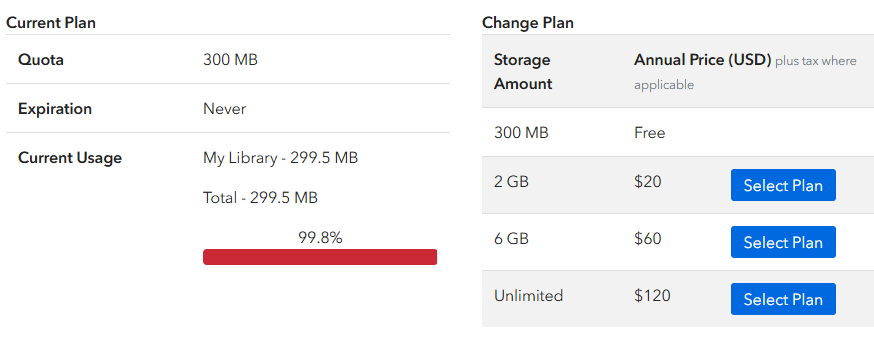
There’s another approach: host your own WebDAV server locally using Docker. Your laptop becomes the file-sync backend, and Zotero treats it exactly like it would treat a commercial WebDAV provider. The difference? No storage caps, no recurring fees, and you keep full control over your data.
This guide walks through setting up a local WebDAV server on Windows 11 using Docker and an open-source repository. Once configured, you can sync PDFs across your desktop, iPad, and iPhone without paying for cloud storage. The setup is minimal, transparent, and—importantly—it actually works.
How It Works#
Zotero separates metadata from files. Your citations, notes, and collections still sync through Zotero’s servers (free and unlimited). Only the PDF attachments go through your local WebDAV server. This hybrid approach means you get the reliability of Zotero’s sync infrastructure for data that matters, while handling bulky files yourself.
Here’s the architecture:
graph TB
    Desktop[Zotero Desktop]
    iPad[Zotero iPad]
    WebDAV[Local WebDAV Server
Docker Container]
    Storage[Local Storage
C:\ZoteroWebDAV\storage]
    OneDrive[OneDrive Backup
via Junction
Optional]

    Desktop -->|sync| WebDAV
    iPad -->|sync| WebDAV
    WebDAV -->|stores files| Storage
    Storage -.->|backup| OneDrive

    style WebDAV fill:#3b82f6,stroke:#1e40af,stroke-width:2px,color:#fff
    style Storage fill:#10b981,stroke:#059669,stroke-width:2px,color:#fff
    style OneDrive fill:#64748b,stroke:#475569,stroke-width:2px,color:#fff,stroke-dasharray: 5 5
Your laptop runs a lightweight WebDAV container that listens on port 8080. When Zotero needs a PDF, it pulls it from localhost:8080 on desktop or from your local IP (192.168.x.x:8080) on mobile. Since everything lives on your hard drive, you’re only limited by disk space.
What You’re Getting Into#
This isn’t a set-and-forget cloud solution. The laptop needs to be on and connected to your network for mobile devices to sync. But in exchange, you get unlimited storage for free, complete data sovereignty, and a setup that’s easy to back up or migrate.
Before we start, make sure you have Docker Desktop installed (with WSL2 enabled), Zotero Desktop, and ideally Zotero Mobile if you want iPad/iPhone support. If you’re comfortable with basic command-line operations, this should take about 20 minutes from start to finish.
Setting Up Docker and the WebDAV Container#
First, install Docker Desktop from docker.com/products/docker-desktop. During installation, enable WSL2 integration and restart Windows when prompted. Verify it’s working by running docker --version in CMD.
Next, clone the WebDAV repository I’m using—it’s a minimal Docker setup specifically designed for Zotero:
git clone https://github.com/giovannifarina/webdav_zotero.git
cd webdav_zotero
This repository uses the derkades/webdav image, which exposes /data as the WebDAV root. Other images use different internal paths, so if you substitute a different one, you’ll need to adjust the volume mounts accordingly.
Create a persistent storage directory outside Docker. This is critical: your PDFs live here, not inside the container.
mkdir C:\ZoteroWebDAV\storage
Now edit docker-compose.yml. This is the exact configuration that works on Windows 11:
services:
  webdav:
    image: derkades/webdav
    container_name: zotero_webdav
    ports:
      - "8080:80"
    environment:
      USERNAME: zotero
      PASSWORD: yourpassword
    volumes:
      - C:/ZoteroWebDAV/storage:/data
    restart: unless-stopped
A few notes here: The volume path uses forward slashes even on Windows (Docker translates them), and the restart: unless-stopped line ensures the container auto-starts after a reboot. Set a decent password—it’s basic auth, so keep it simple but not trivial.
Start the container:
docker compose up -d
Verify it’s running:
docker ps
You should see zotero_webdav listed with an “Up” status. If you open http://localhost:8080 in a browser, you’ll either see a login prompt or an empty directory listing—both mean it’s working.
Configuring Zotero Desktop#
In Zotero, go to Settings → Sync → File Syncing and configure WebDAV as shown below:
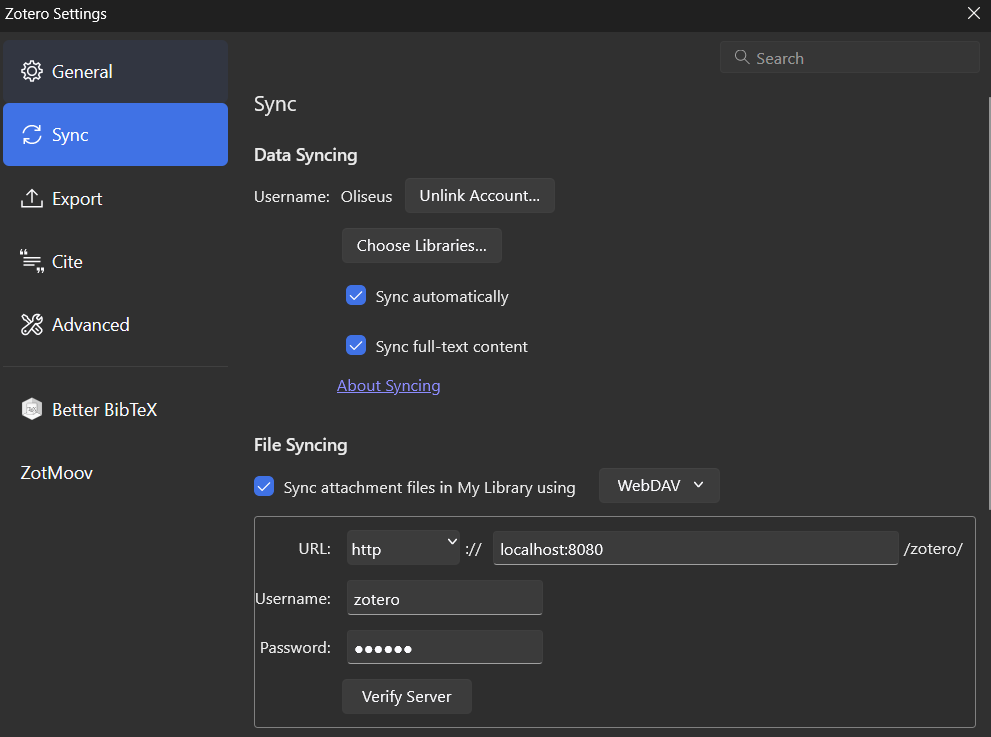
/zotero/ path at the end, and both sync options are enabled.
Set the URL to http://localhost:8080/zotero/, enter your username (zotero) and password, then click Verify Server. If verification succeeds, you’re connected.
If you already have PDFs stored in Zotero’s default location (C:\Users\<YOUR_USERNAME>\Zotero\storage), close Zotero and copy them to C:\ZoteroWebDAV\storage. Restart Zotero and trigger a sync—it’ll treat WebDAV as the authoritative source from now on.
Connecting Zotero on iPad and iPhone#
Mobile devices can’t use localhost, so you’ll need your laptop’s local IP address. Run ipconfig in CMD and look for the IPv4 address (something like 192.168.x.x).
On your iPad or iPhone, open Zotero and navigate to Settings → Sync → File Syncing. The URL format changes slightly: http://192.168.x.x:8080/zotero/ (replace 192.168.x.x with your actual IP). Use the same username and password as desktop.
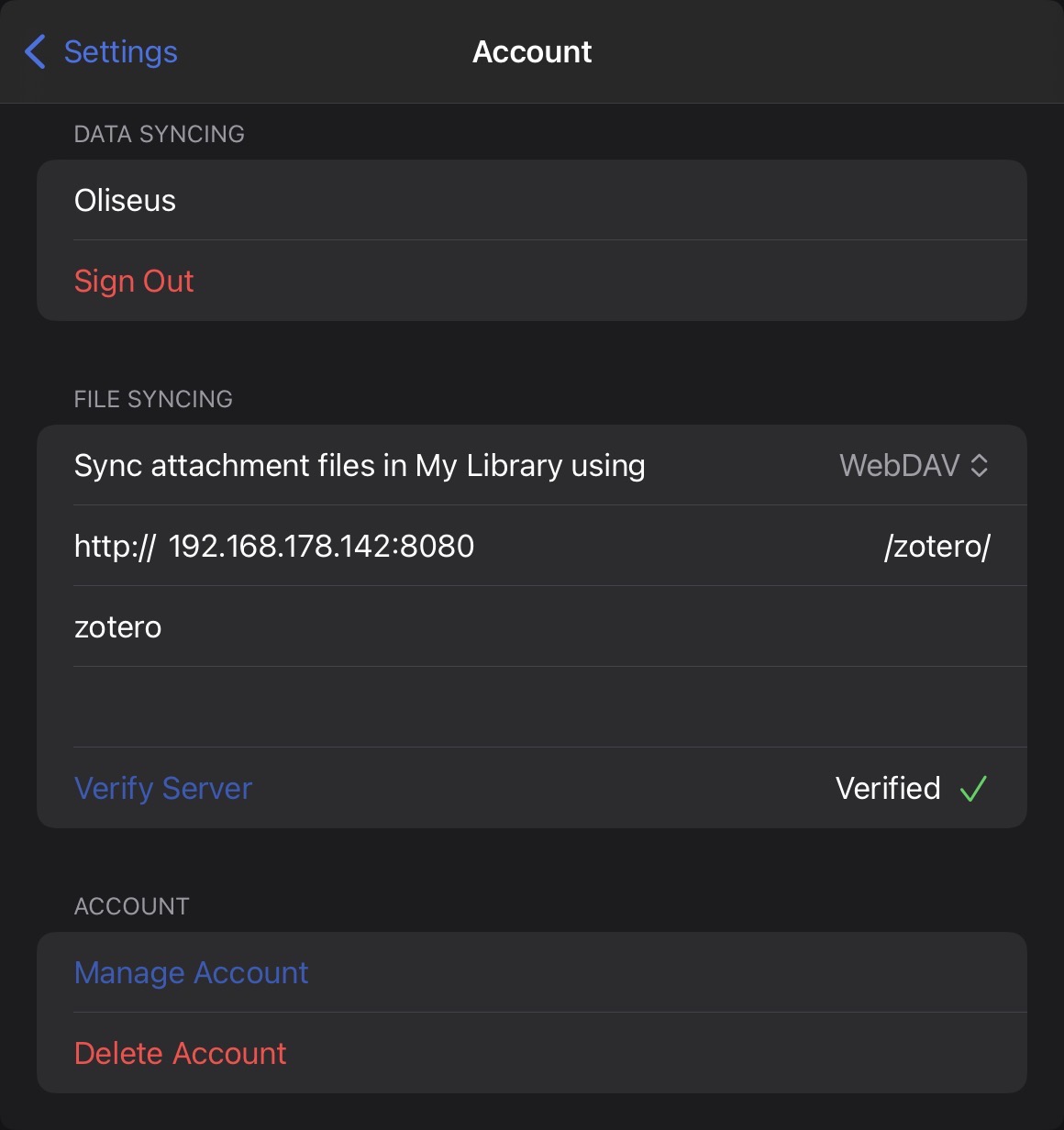
Mobile sync only works when your laptop is powered on, Docker is running, and both devices are on the same network. The first sync can take a while if you have a large library, but subsequent syncs are incremental. Once a PDF is downloaded to your mobile device, it’s cached locally, so you can read it offline.
If sync fails, open Safari on your iPad and navigate to http://192.168.x.x:8080. If you see the WebDAV login or directory listing, the server is reachable. If not, check Windows Firewall (it may block local network access to port 8080) or verify your router isn’t blocking device-to-device communication.
Backing Up to OneDrive#
WebDAV is not a backup. If your laptop’s drive fails, your PDFs are gone. To protect against this, create a directory junction that mirrors your WebDAV storage to OneDrive.
Open CMD as Administrator and run:
mklink /J "C:\Users\<YOUR_USERNAME>\OneDrive\ZoteroWebDAV" "C:\ZoteroWebDAV"
This creates a symbolic link: OneDrive sees the junction as a folder and syncs its contents to the cloud, while Zotero and Docker continue using the original location. It’s transparent, requires no additional configuration, and ensures your library is backed up continuously.
Managing the Docker Container#
The WebDAV container must be running for sync to work. If you stop it or your laptop reboots, Zotero will fail silently when trying to sync files (metadata sync still works, but PDFs won’t transfer).
To start the container after a reboot:
cd webdav_zotero
docker compose up -d
Check if it’s running:
docker ps
If you need to stop it (e.g., to free resources):
docker compose down
This stops and removes the container but doesn’t touch your files—they’re stored in C:\ZoteroWebDAV\storage, outside the container. The restart: unless-stopped policy in docker-compose.yml should auto-start the container after Windows reboots, but if that fails, just run docker compose up -d manually.
| Activity | Container Needed? |
|---|---|
| Syncing PDFs (desktop or mobile) | Yes |
| Reading PDFs already in Zotero | No |
| Adding citations (metadata only) | No |
| Working offline | No |
For daily use, I leave the container running. If you only sync occasionally, start it when needed and stop it afterward.
Common Issues#
A few things that tripped me up during setup:
Wrong Docker image: Different WebDAV images use different internal paths. If you swap derkades/webdav for something else, double-check where it expects the volume mount.
PowerShell and mklink: The junction command only works in CMD, not PowerShell. If you try it in PowerShell, the syntax is different and more verbose.
Mobile sync failing: Usually a network issue. Verify your IP hasn’t changed (Windows can reassign it) and that Windows Firewall isn’t blocking port 8080 for local connections.
Container not restarting: If auto-restart fails, ensure Docker Desktop itself is set to start with Windows. You can configure this in Docker Desktop settings.
Final Thoughts#
This setup is intentionally simple. There’s no hidden sync logic, no vendor lock-in, and your files remain readable outside Zotero. It’s not as convenient as a fully managed cloud service, but for anyone who values control, transparency, and cost savings, it’s a solid alternative.
The total cost? Zero dollars, and storage is only limited by your hard drive. For researchers on tight budgets or anyone who prefers self-hosting, that’s hard to beat.
This guide is part of my Digital Odyssey series, where I document technical solutions that empower personal knowledge management and digital productivity.